Tutorial
How players and organizers use PongClub, step by step.
Players
Organizers
How match days work
No account needed. Everything works from your phone: scan the QR code at the venue, find your name and play.
1Browse events
The home page is Events, in three tabs: Open (open for sign-up or coming up), Live (check-in open or running now) and Past (every result). Use the top menu to switch to Clubs, Player or the Tutorial.
2Find your club
Open Clubs in the top menu and pick your club; search by club name or city. The club page has four tabs: Events (its leagues and tournaments that are running or coming up), Play calendar, Rankings and History (past leagues and tournaments by year, filterable by type; open one to see its standings, bracket and scores). To become a member, join it from the Club tab of your player page, or simply take part in one of its events.
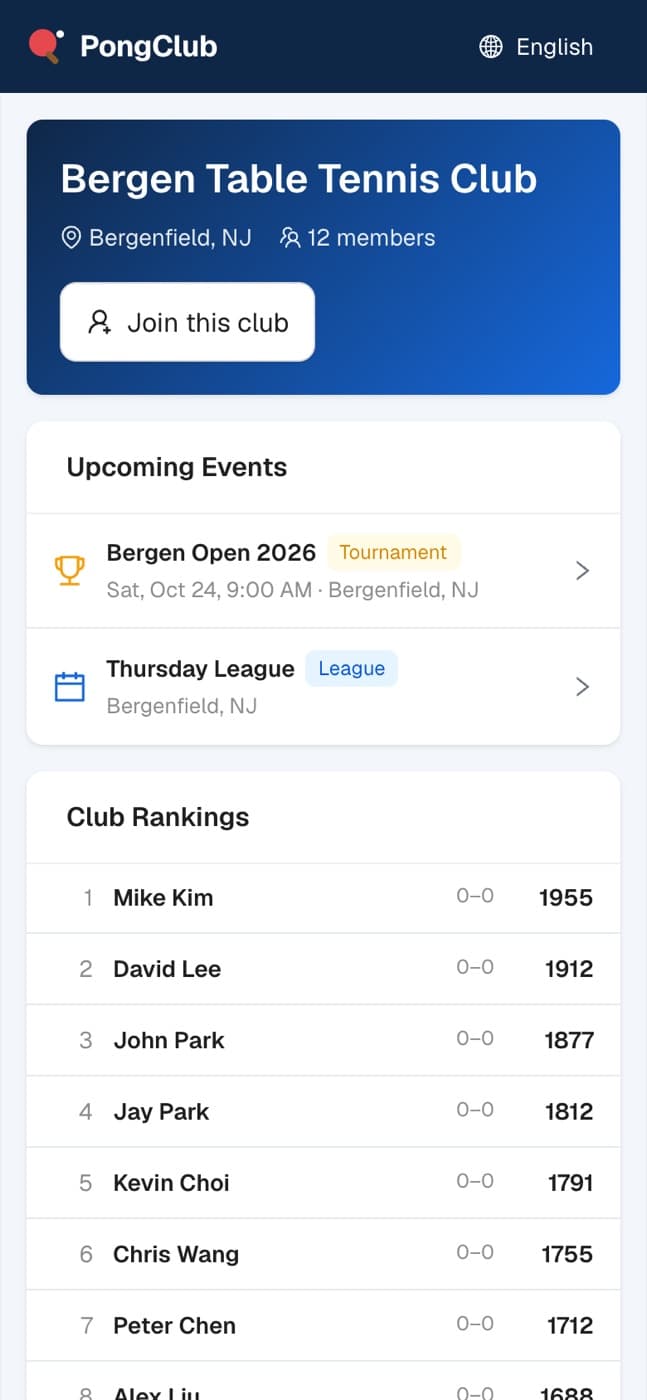
3Find partners on the play calendar
The club's Play calendar tab shows this week and the next four, with how many players are going each day. Tap a date to see who comes at what time, then tap Pick a time to add yours (one time per day; change it or choose Not going later). The first time, confirm who you are, just like My page. Share sends the day as an image plus a link to your group chat.
4Register and check in for match day
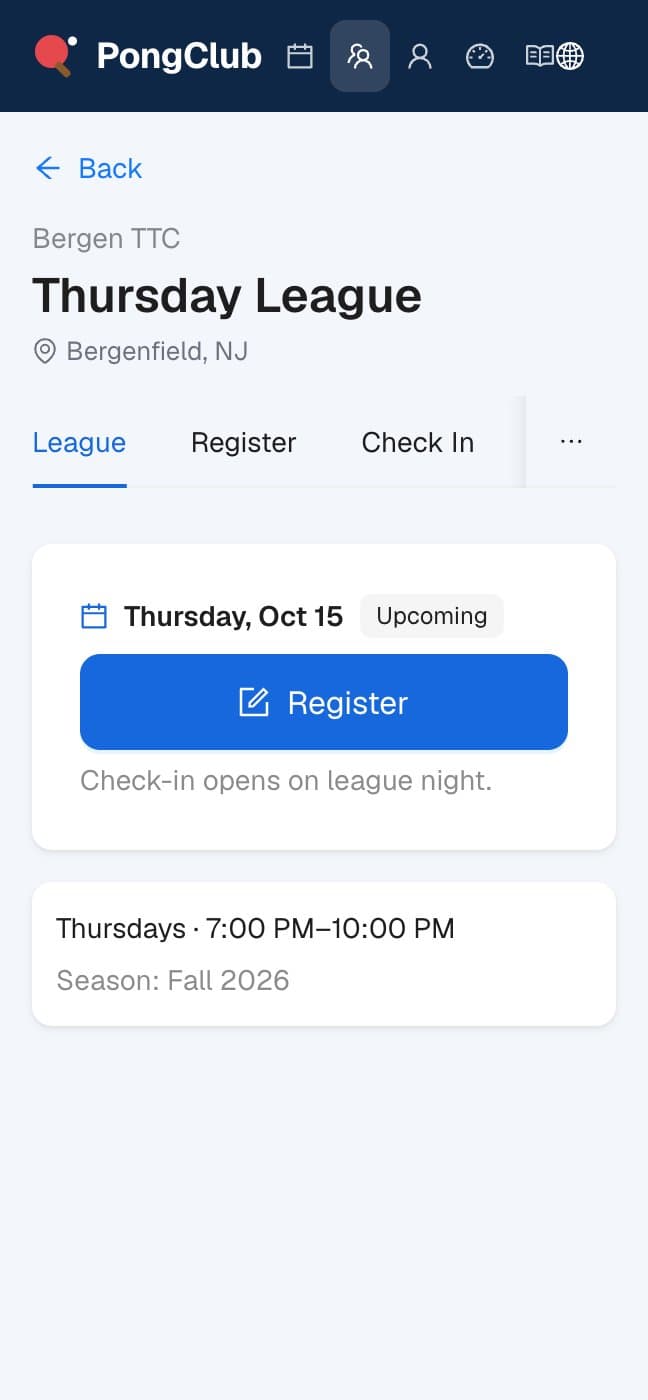
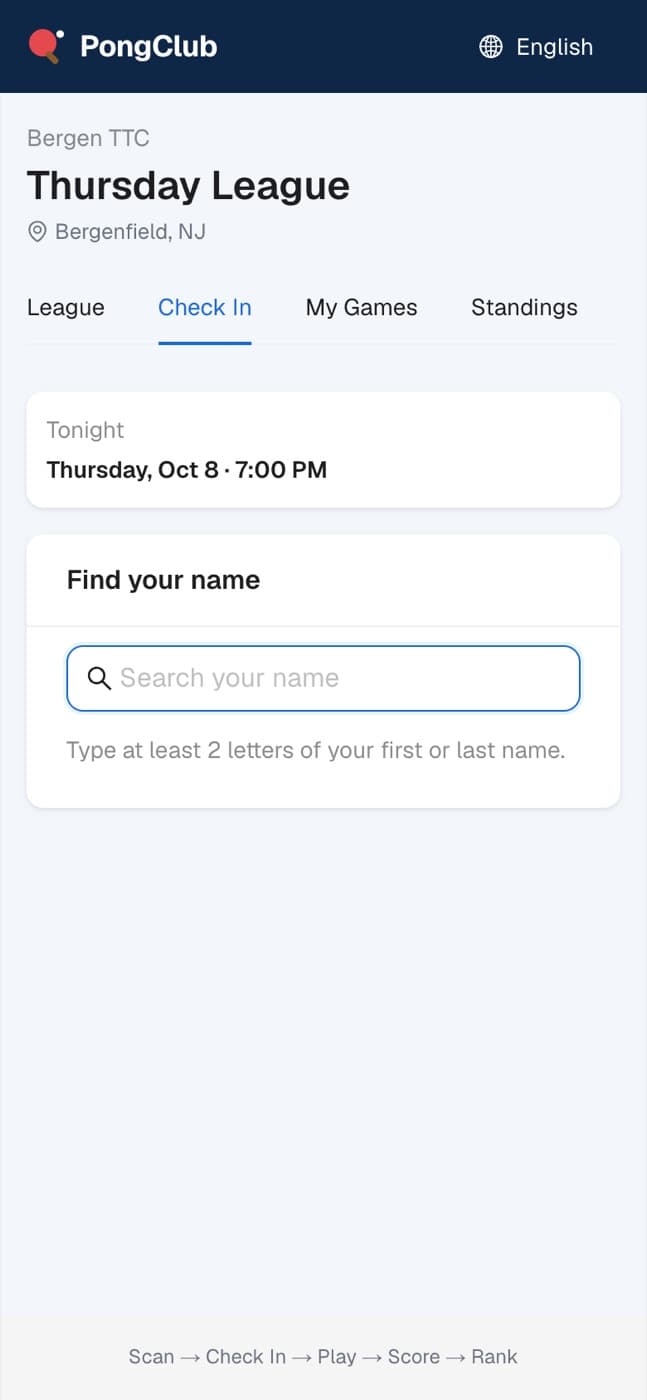
Before match day, tap Register right on the league page to sign up for the next match day: one tap if this device remembers you, otherwise pick your name first. The button turns into Registered; tap it again to withdraw. To sign up for several match days at once, follow Register for other match days to the Register tab, where you also see who else registered. On the day, scan the league QR code and tap Check In: type at least 2 letters of your name, pick yourself and confirm. Only registered players can check in; if you forgot to register, the check-in asks Register and check in and does both at once. Checking in is how you get into the day's games, and check-in closes once the group stage is over.
5Play and enter your score
Once the organizer generates the games, open My Games. During the group stage, My group lists every match in your group; your own unfinished matches have a ✏️ icon that opens the score entry right there. The Knockout section below explains who advances; when the groups finish it shows whether you made it and the bracket, with your name highlighted and an edit button on your match. In the knockout, the Next Match card at the top shows the round and your table. After the match, either player enters the score and it counts right away, in leagues and tournaments alike. If a score is wrong, tell the organizer; they can correct it.
6See and share match day results
When match day ends, the league page shows Today's champion and the Runner-up. Tap Share results on the Today's games card to create an image (champion and runner-up, knockout scores round by round, group standings) plus a link to the day's full results. On a phone it opens the share sheet for your group chat; on a computer it downloads the image and copies the link. Past leagues and tournaments stay in the club's History tab.
7Register for a tournament
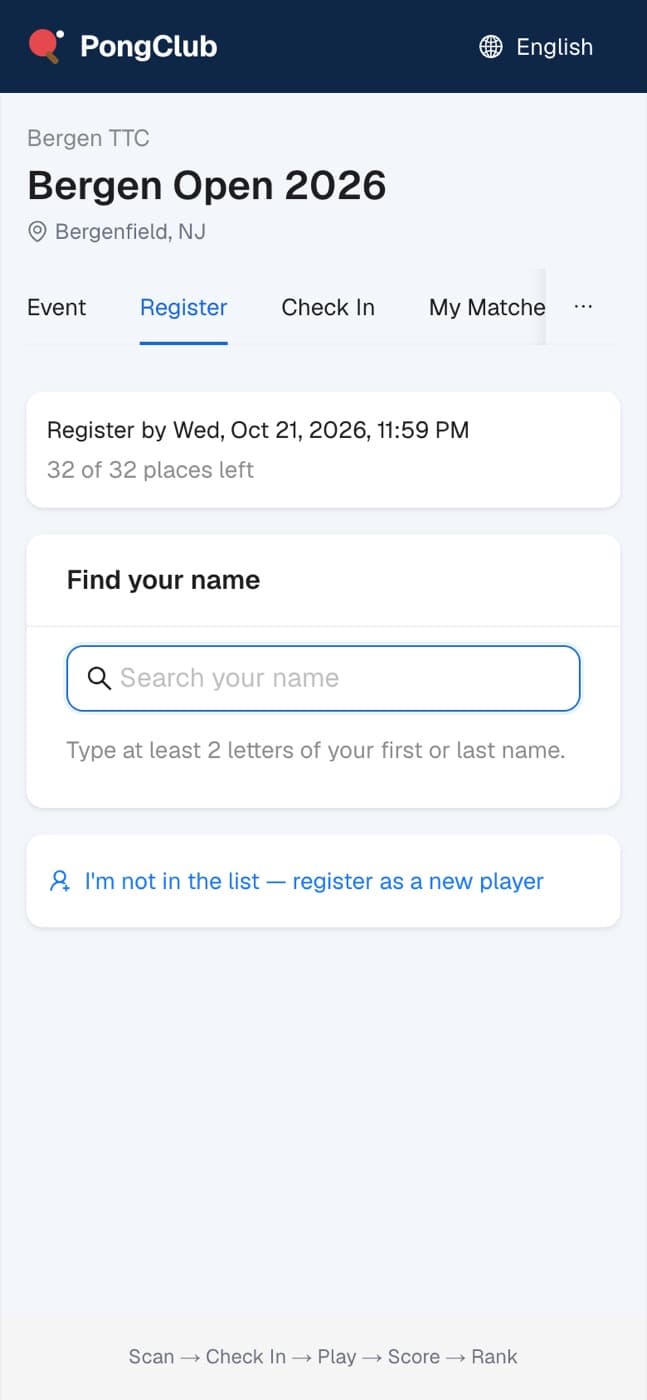
Open the tournament page and tap Register, then find your name. Not on the list? Register as a new player with your name, email and birthday. On the day, check in from the tournament's Check In tab.
8Open your player page
Tap Player in the top menu and search for your name. Players with the same name are told apart by club and rating. Pick yourself and enter your birthday; if you never set one, you set it now. First time in PongClub and only playing? Tap Register as a new player: no account needed. This device then remembers you and asks "Are you …?" next time.
9Your player page
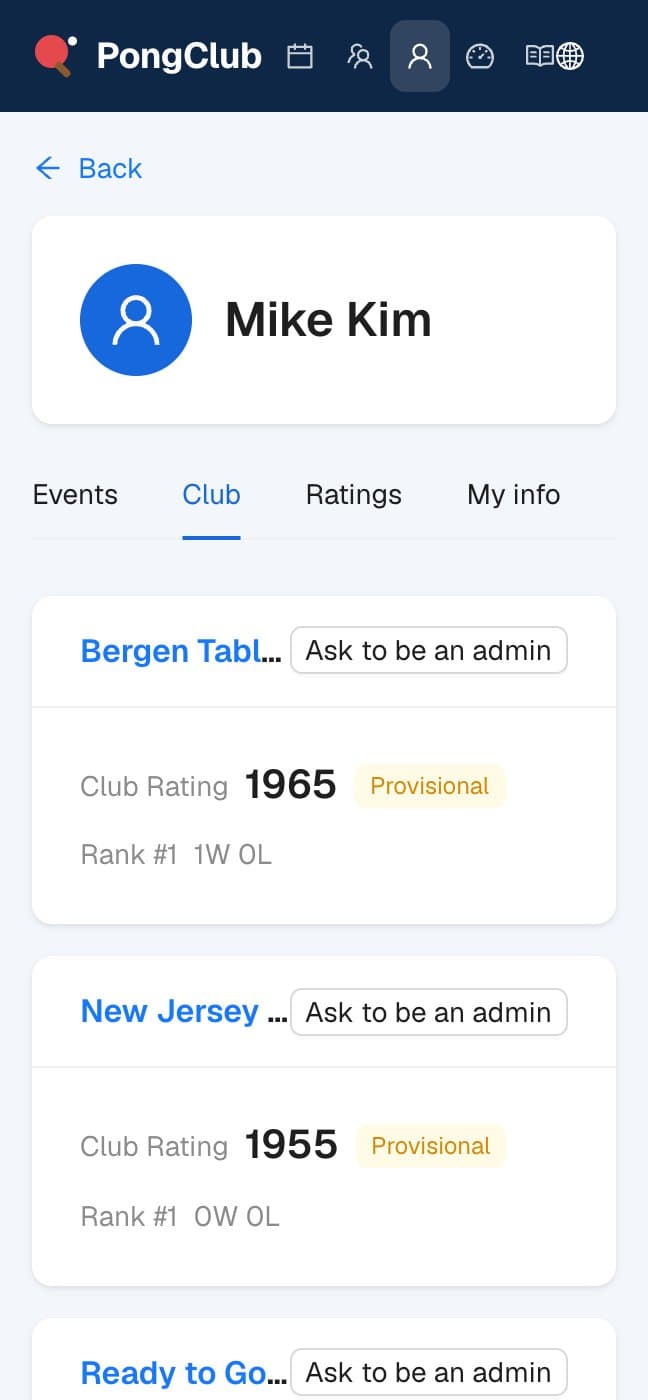
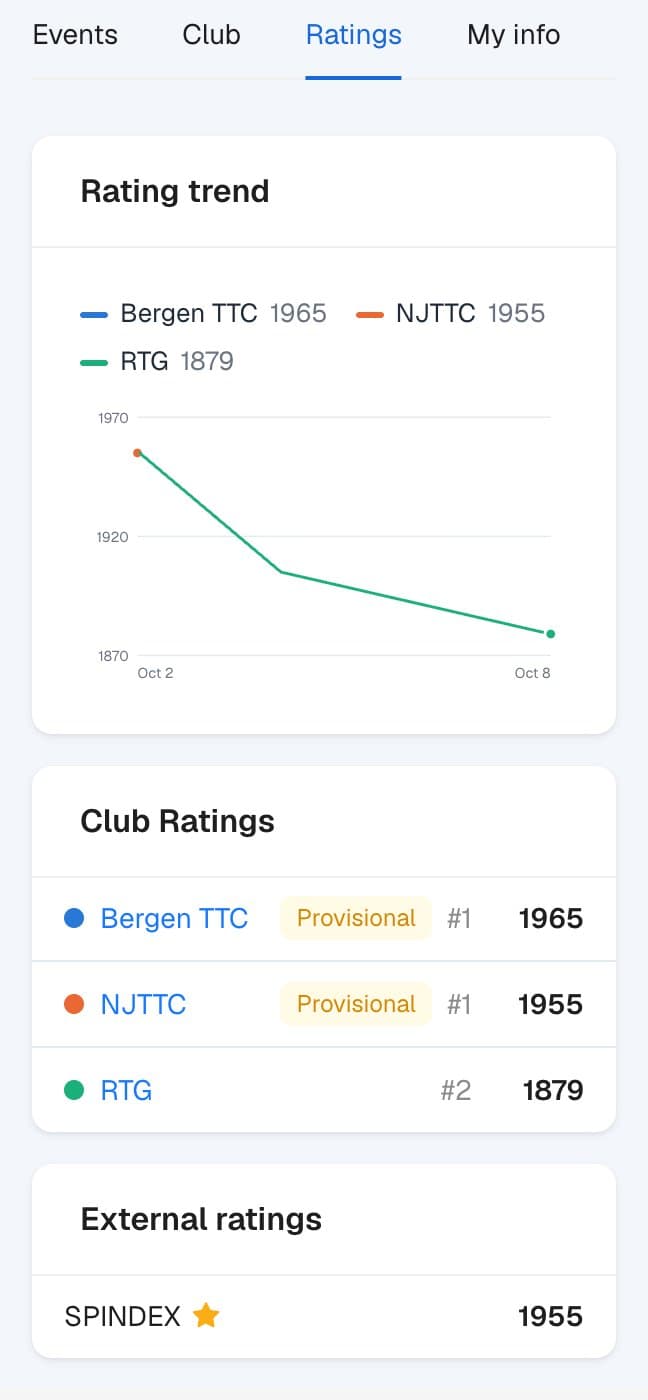
Your player page has four tabs. Events: what you entered and what you can still join. Club: each club you belong to with your Club Rating, rank and record; tap Join a club to become a member of another club right away. Ratings: one chart with your rating trend in every club, a color per club (tap the chart to see each club's rating on that day), then your club and external ratings. My info (only on your own device): your details, and your USATT and SPINDEX ratings under My external ratings; they show as self-reported until an organizer verifies them.
10Help run your club
In the Club tab of your player page, tap Ask to be an admin next to the club and add a note if you like. Admins sign in with an account, so link one first: the dialog links the account signed in on this browser, or lets you sign in or create one and come back. The club's admins approve or decline; until then the card shows Admin request pending and you can withdraw it.